
How to Pre-Bid in Online Auctions: Step-by-Step Guide
December 16, 2025

Securing your items before and during an auction is simple. In this guide, we walk you through the step-by-step process to get it done. Once bidding opens, the race is on to stay on top and win the lot. Bidding comes down to strategy and knowing how to allocate your budget across the items you really want. Pay close attention!
Bidding Reminders
Regardless of whether a participant is new or seasoned at 4less auctions, key points to consider include:
- Submitting any bid during an event binds you to buy the item from the auction house should your bid be the highest.
- Carefully examine the product description and inspect all photos before submitting bids.
- Clarity in digital photos and written details can fluctuate.
- Reach out to the seller directly for additional information on aspects not covered in the item listing.
- Carefully review the seller’s Terms of Sale guidelines prior to bidding.
- Proxibid tracks pre-bid cancellation requests to prevent misuse.
What are Pre-Bids?
Pre-bids are bids placed prior to a Live event going active or within a Timed auction. These early bids can be set as instant offers or maximum limits, serving simply as advance entries. Certain sellers might call them “absentee bids.” Throughout the auction process, the system automatically places bids on the participant’s behalf up to their established maximum ceiling.
For Live auctions, pre-bidding remains open only for items that have not yet officially hit the floor or started active bidding.
Placing Pre-Bids
By entering a bid, participants consent to the seller’s Terms of Sale; therefore, bidders ought to carefully review these conditions before taking part in any auction event.
Should the item already have existing bids, submit an advance bid by selecting the Bid Now option located to the right of the listing. In doing so, the bidder consents to bid the exact amount shown on the Bid Now option.
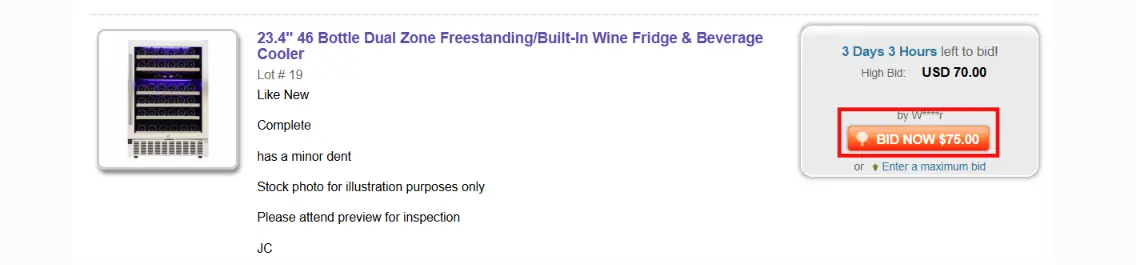
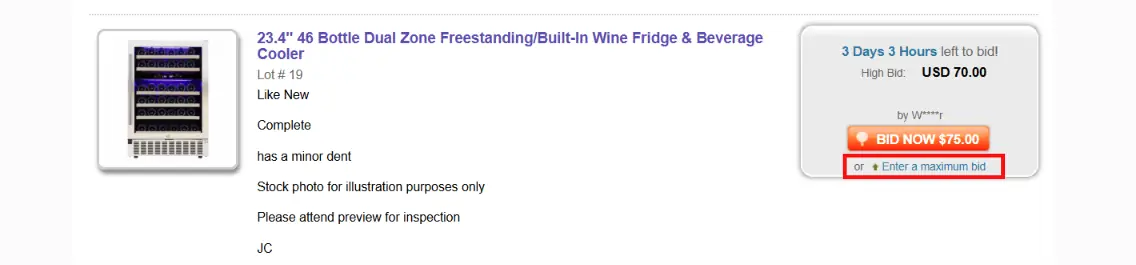
To place a maximum bid, click the Enter a Maximum Bid link and then enter the maximum bid into the bid field.
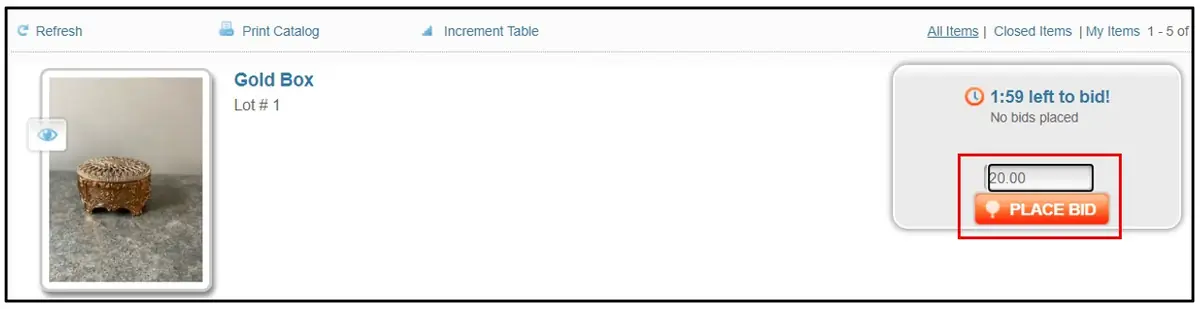
If the lot does not already have bids, place a pre-bid by entering a dollar amount into the field to the right of the item in the event’s catalog and click the Place Bid button.
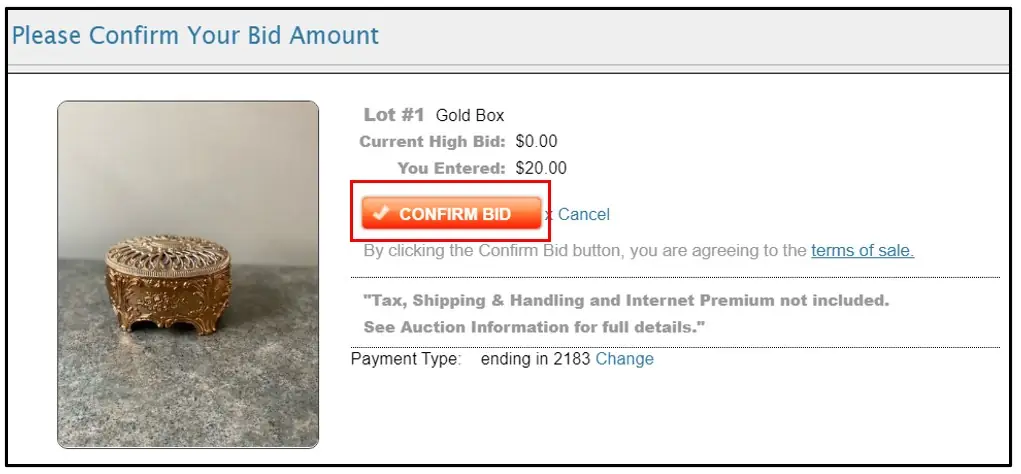
A confirmation window will open confirming the bid amount. Click the Confirm Bid button to place the bid. The bid will not be submitted unless the Confirm Bid button is clicked.
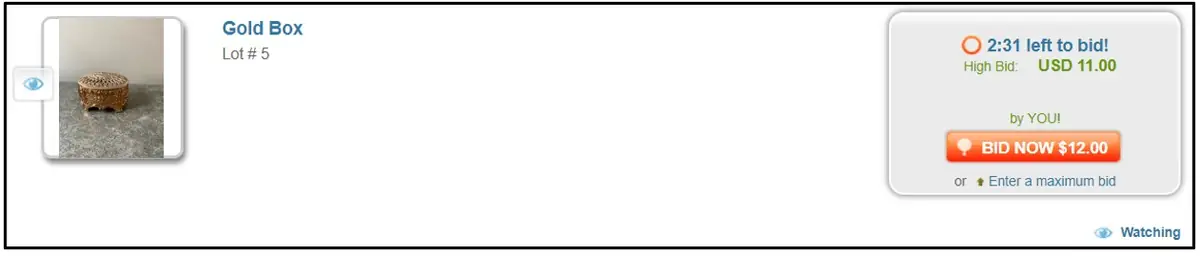
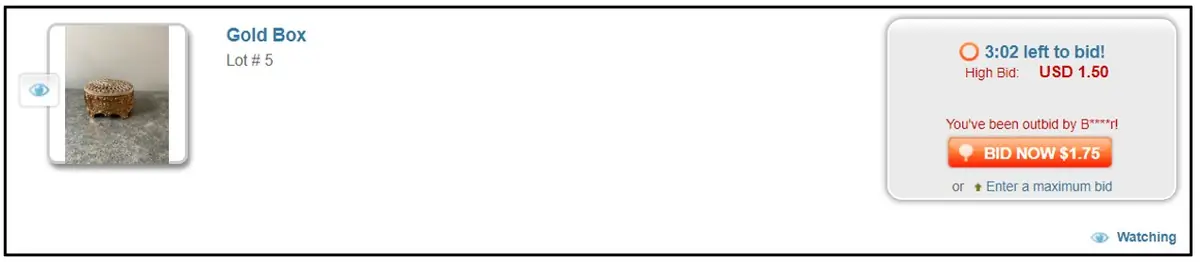
If the pre-bid is now the highest bid, the bid will appear in green. If the bidder has been outbid, the pre-bid will appear in red.
Viewing Pre-Bids
- Access your account by selecting the Sign In option at the top right of the page, then input the email (or username) and password linked to your profile.
- If you need to retrieve or reset your password, select the Forgot Password link.
- For further support with logging in, reach out directly to customer support.
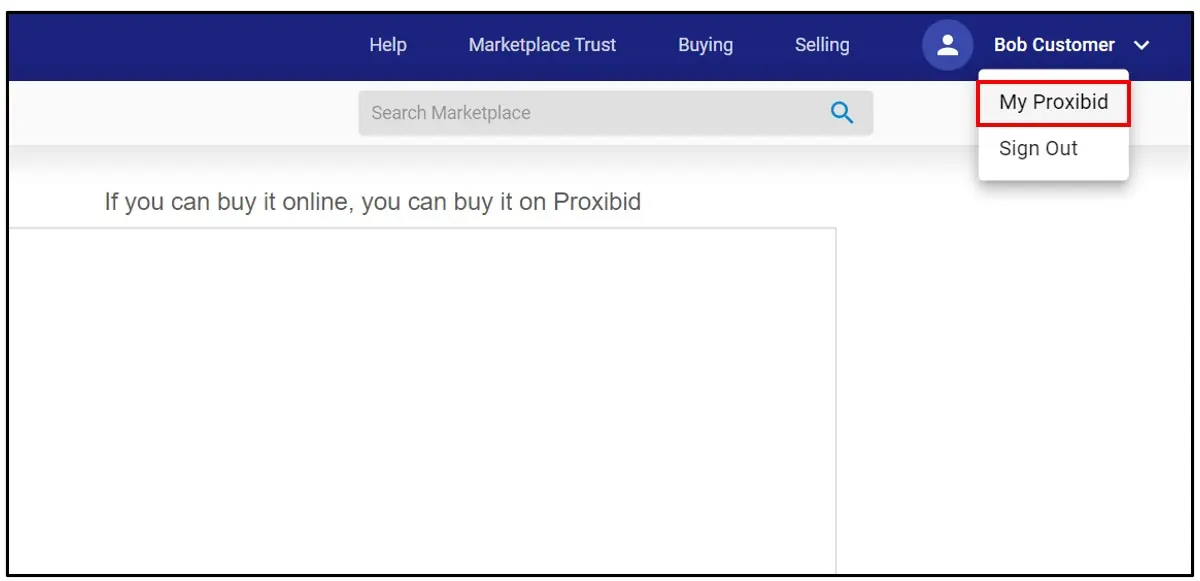
- Choose MyProxibid from the drop-down menu in the upper-right corner of the page.
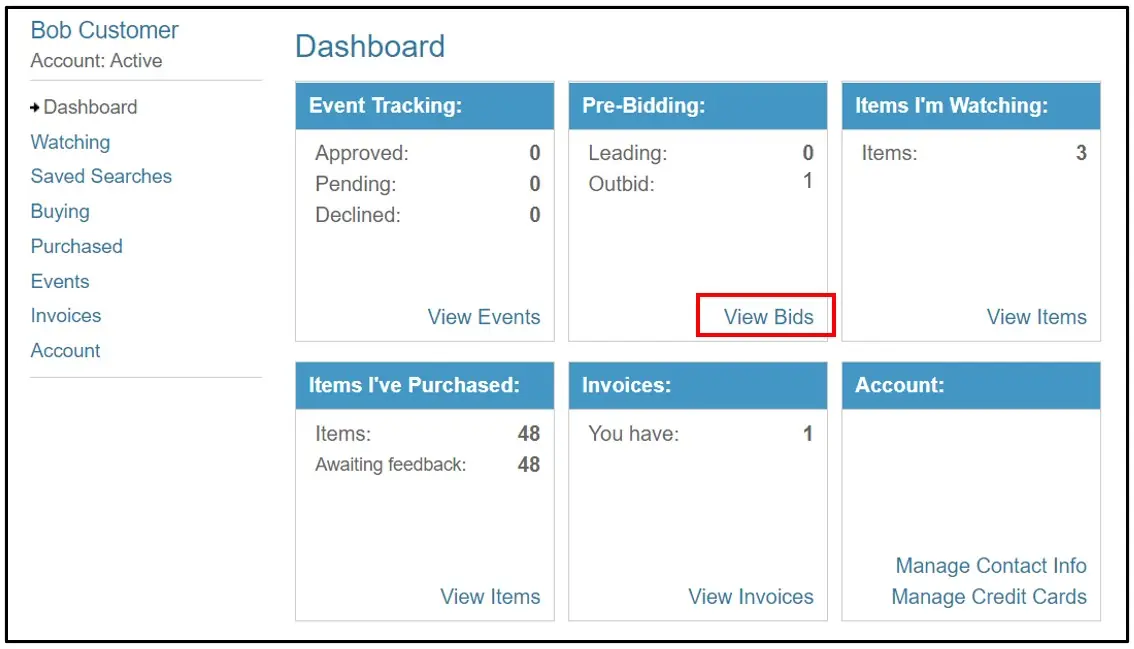
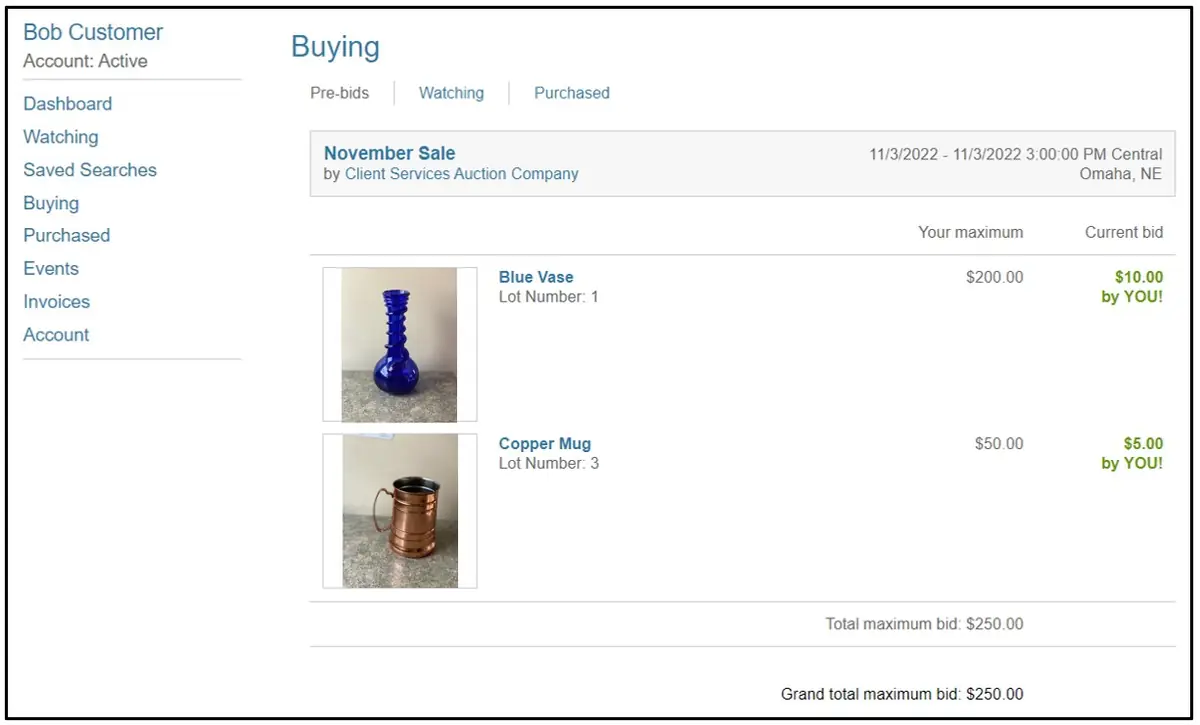
- On the Dashboard, click on the View Bids link located in the Pre-Bidding box.
- The Pre-Bidding box displays the bidder’s total number of leading active pre-bids and the number that have been outbid.
- A list of current pre-bids will appear. Pre-bids are removed from the list once the auction event ends.
- Items will be sorted by auction event.
- Click on any item to view the item’s details.
- The item’s Current Bid will be listed alongside the bidder’s maximum bid. If the Current Bid is green, it is the bidder’s current bid. If it appears in red, the bidder has been outbid.
- The bidder’s pre-bid total will be listed at the bottom of the page.
Now that you know how to pre-bid, it’s time to set your maximum bid on the items you want to win! We hold two monthly auctions, one in Oceanside and one in San Ysidro. Each offering a wide variety of home goods, electronics, gym equipment, and more, all at liquidation prices.
Want to learn more? Find out how to register on Proxibid or how to place your bids today. See you at the next auction!